Pocket and Omnivore have their own walkthroughs. This one is for everything else: a Raindrop export, and the years of pages your browser has been holding on to.
Both go in the same way. Here’s what comes with them, and what doesn’t.
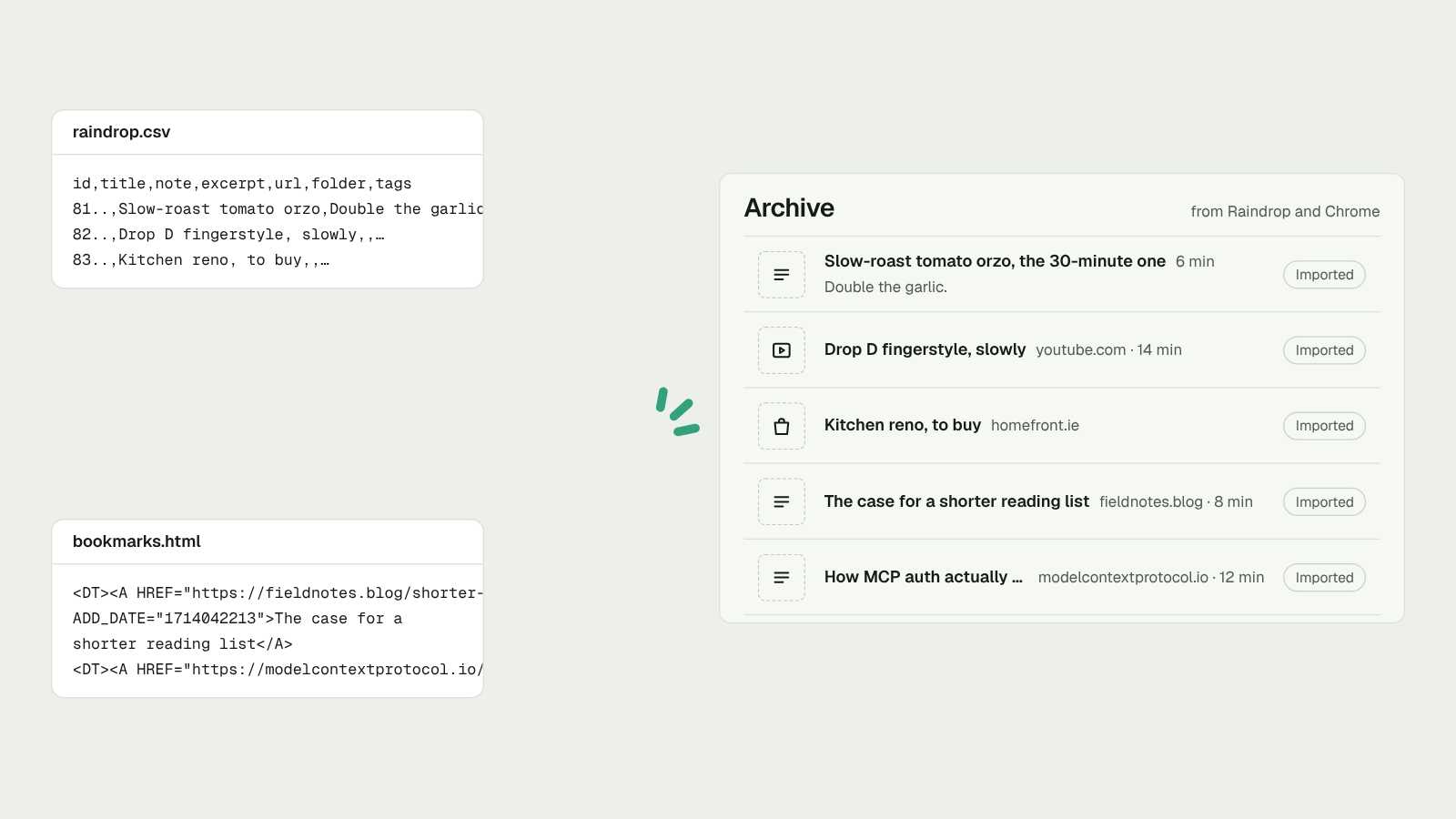
Get the file
- Chrome. Open the bookmark manager, then the three-dot menu, then Export bookmarks.
- Safari. File, then Export, then Bookmarks.
- Firefox. Bookmarks, then Manage bookmarks, then Import and Backup, then Export Bookmarks to HTML.
- Raindrop. Export a CSV from Raindrop’s settings.
Bring it across
- Sign in to Pluck. You get a link by email. There’s no password.
- Open Settings, then Import and export.
- Pick Raindrop (CSV) or Browser bookmarks (HTML) and drop the file in.
Files up to 500 MB are fine. The import runs in the background.
What comes with it
From Raindrop: every link, its title, your tags, your note and the date you added it.
From a browser: every link, its title and the date you added it.
What doesn’t
Folders. Pluck has tags and lists, not folders, and a folder from 2014 rarely means what it did. Highlights from Raindrop don’t come across either.
If a folder still matters, make it a list in Pluck. A list keeps an order and a note on each item, which a folder never did.
Where it lands
In the Archive, marked Imported, so your Inbox starts empty. Anything you already had in Pluck stays as it was. You get one item, not two.
The pages
These files hold links, not pages. So Pluck goes back and reads each page, spacing the requests a few seconds apart so nobody’s site gets hammered. A big import takes a while. Close the tab and let it run.
When it’s done, search finds words in the page text, not just the titles. The page you starred in 2016 for one paragraph is findable by that paragraph.
Every word on the page. Even the ones you skimmed.