In March you plucked a recipe for slow-roast tomato orzo, the 30-minute one. You know you did, but you can’t find it.
Your AI can. Give it one link and it reads your whole Pluck library: the titles, your notes, your tags, your lists and the text of every page Pluck kept.
There’s no AI in here
Pluck never sends what you pluck to a model on its own. Nothing gets tagged behind your back, and no summaries appear.
Your AI comes in when you connect it and does what you ask. It connects over MCP, the open standard AI tools use to plug into apps. Pluck speaks it, so any tool that does can connect: Claude, ChatGPT, Cursor and the rest.
Connect it
The link is the same for every tool:
https://getpluck.io/mcp
- Claude. Settings, then Connectors. Choose Add custom connector and paste the link. Once it’s in, it works on the web, desktop and phone.
- ChatGPT. Settings, then Connectors. Choose Create and paste the link as the MCP server URL. You need a plan that allows custom connectors.
- Claude Code. One line in a terminal, below.
- Cursor. Settings, then MCP. Add a server with the link.
claude mcp add --transport http pluck https://getpluck.io/mcp
The first time, each one asks you to sign in to Pluck, and that’s all. Connect your AI has the same steps with a copy button.
Then ask
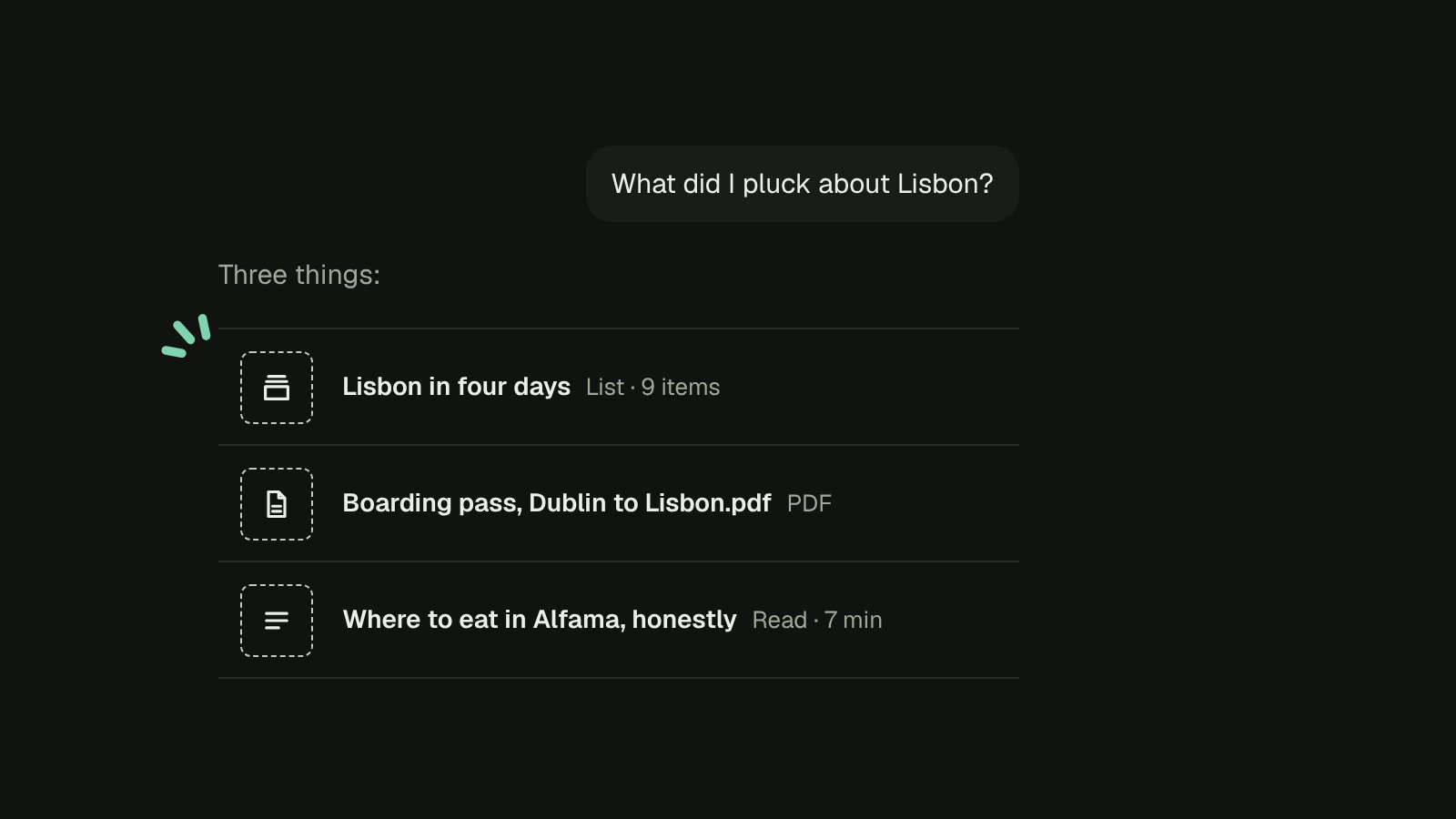
- “What did I pluck about Lisbon?”
- “Tidy my Pluck inbox.” It suggests tags from the ones you already have, and keep, later or archive for each item. You say yes or change them, all in one go.
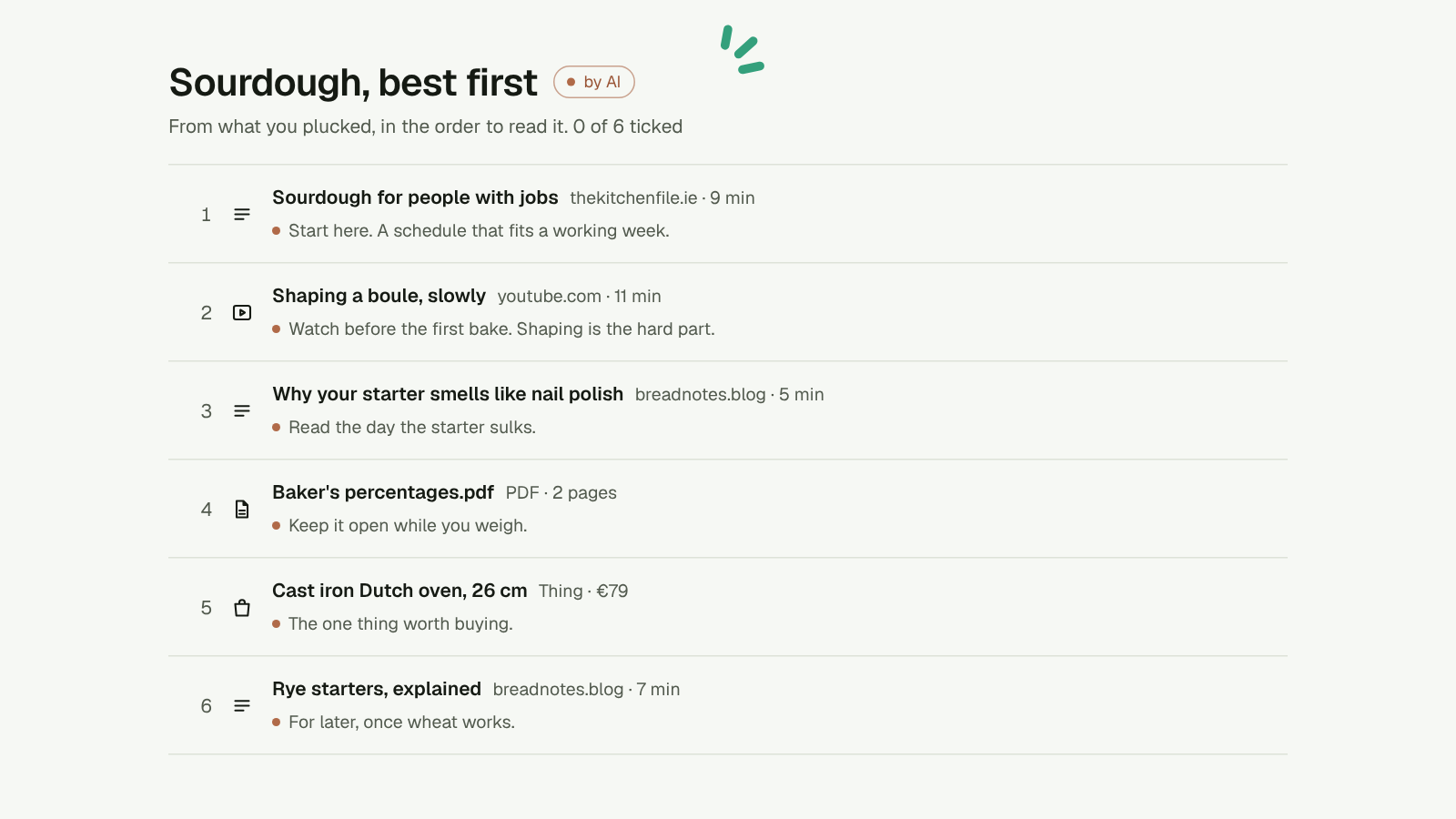
- “Make a reading list on sourdough, best first.” It searches, reads and builds a list in order, with a line on why each one is there. The list stays private until you say otherwise.
- “Three blog ideas from what I plucked this week.” It reads the best five in full and drafts three angles, with sources.
- “Run my weekly review.” The Monday email as a conversation, one decision at a time.
- “Pluck this as a note: ask Aoife about the fitters.” It goes in your Inbox as a Note.
What it can’t do
- Delete anything. Pluck doesn’t give it permission to.
- Make a list public. Only you can, from the list in Pluck.
- Make a tag you didn’t ask for, or rename one you made.
- Change what a list is for.
Every tag and list it makes carries a “by AI” mark. If you don’t like a week of its tagging, Settings takes those tags back in one tap.
Disconnect it
Settings, then AI tools, then Disconnect. It stops straight away, not at the end of a session.
Running your own Pluck
Self-hosted without a public address? Make an API key in Settings and bridge it locally:
npx @getpluck/mcp --server https://pluck.your.host --key pk_live_…
You get the same tools and the same prompts, pointed at your server.
There’s no AI in here. Bring your own.